
How to Create a Quote Image
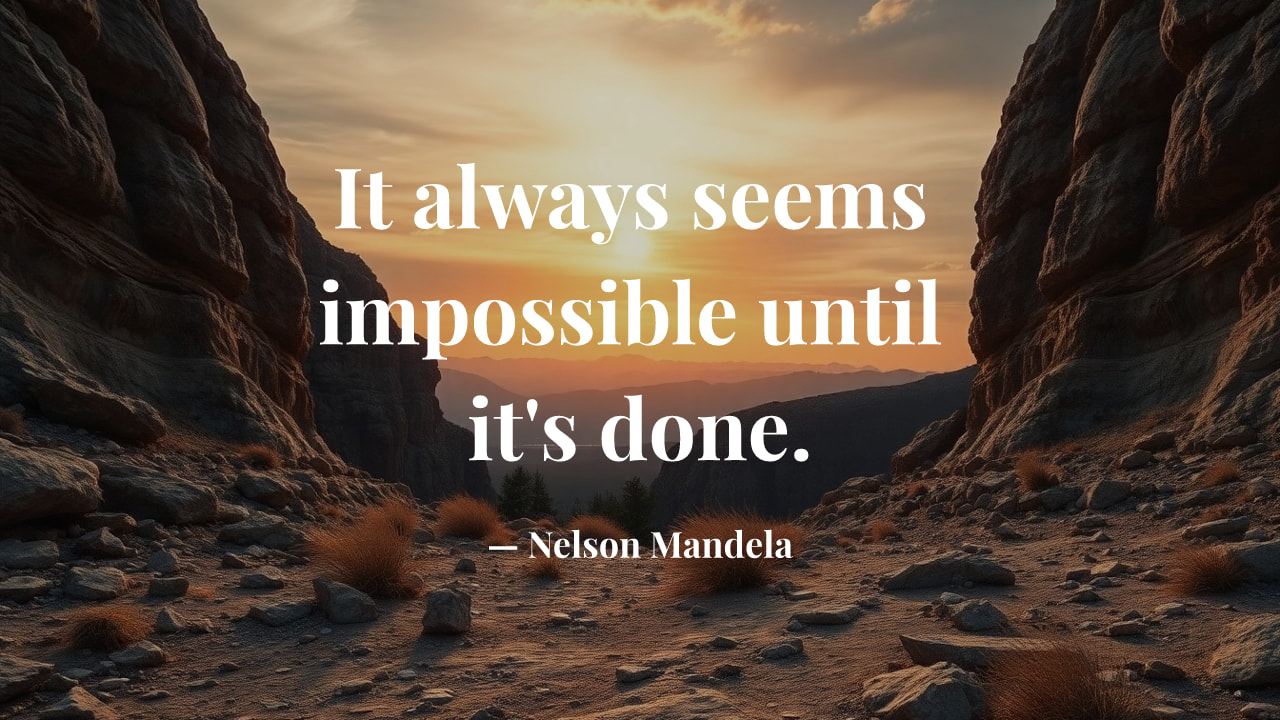
This is a simple example of how you can create a quote image for social media or personal content.
If you want to turn a quote into something visual — something you can post on Instagram, share on Pinterest, or use in your content — you're essentially trying to create a quote image.
The process is simpler than most people think. Once you understand the basic steps, you can create a quote image in just a few minutes without any design experience.
The simplest way to create a quote image
Here's the quick version:
- Enter your quote
- Choose the image size and text position
- Select or generate a background
- Adjust text style and readability
- Export your image
If you just follow these steps, you can create a quote image that's ready to share almost instantly.
Step-by-step: how to create a quote image
Let's walk through each step so it actually makes sense when you try it.
1. Enter your quote
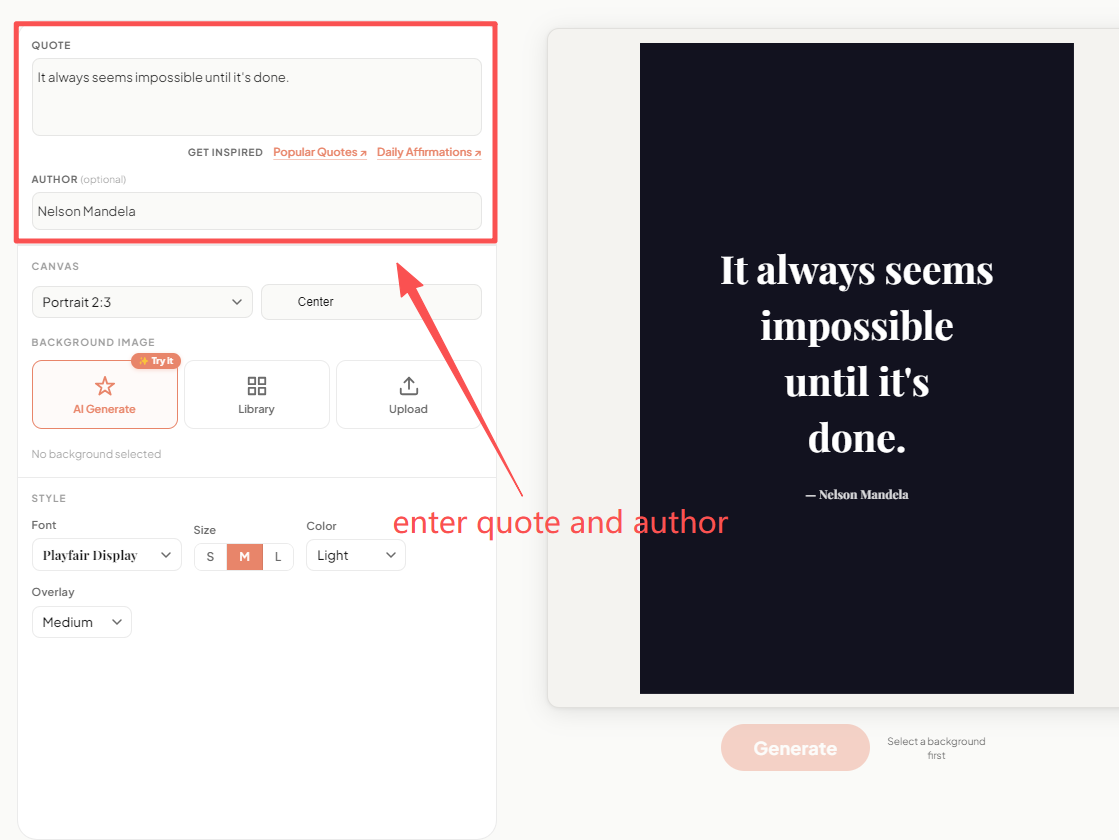
Start by entering your quote. This is the foundation of your design, so shorter and clearer text usually works best.
Start with the text itself.
This could be:
- a motivational quote
- a short caption
- an affirmation
When you create a quote image, shorter text usually works better. If the quote is too long, it becomes harder to read and harder to design.
Aim for something that can be read in one glance.
2. Choose the image size and text position
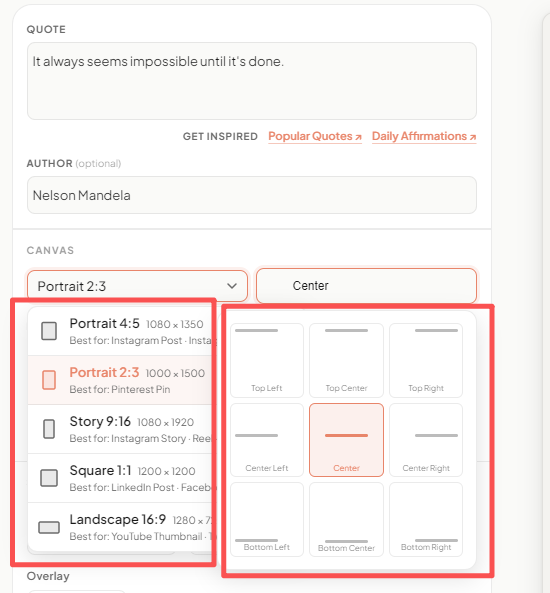
Choose your image size and text position. The 9-grid layout makes it easy to place your quote without manual adjustments.
Next, decide how your quote image will be structured.
First, choose the image size based on where you'll use it:
- square for Instagram posts
- vertical for Pinterest
- flexible formats for blogs or other uses
Then choose where the text should appear.
In SparkPoster, you can position your text using a simple 9-grid layout — top, center, or bottom combined with left, center, or right alignment. This makes it easy to create a quote image with balanced composition without manually dragging elements around.
A bold, short quote often works well in the center, while longer text can feel more natural when aligned to the left or placed slightly lower.
3. Choose a background
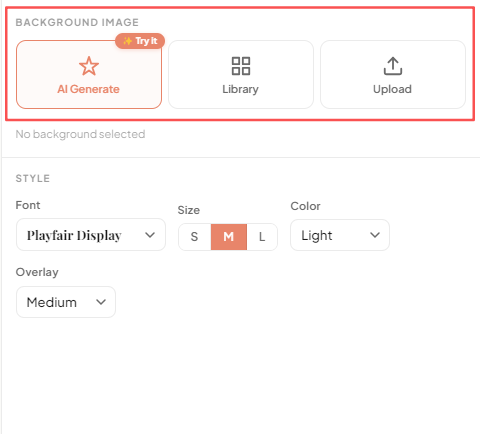
You can generate a background with AI, choose from the library, or upload your own image depending on your style.
Now it's time to decide what your quote sits on.
You have three main options:
- generate a background using AI
- choose an image from the built-in library
- upload your own image
If you're not sure what to pick, AI-generated backgrounds are usually the fastest way to create a quote image that matches the tone of your text.
If you already have a visual style in mind, using the library or uploading your own image gives you more control.
The key is simple: the background should support the message, not compete with it. AI-generated recommend.
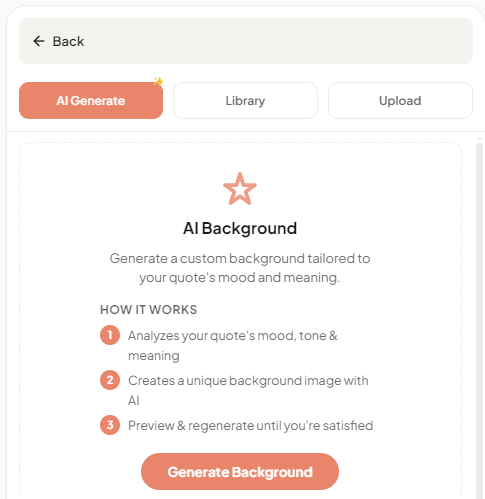
Use AI to generate a background that matches your quote. This is one of the fastest ways to create a quote image without choosing images manually.
4. Adjust text style and readability
This is where your quote image either works or fails.
Check these things:
- Is the text easy to read on mobile?
- Is there enough contrast between text and background?
- Does the spacing feel comfortable?
When you create a quote image, readability always matters more than decoration.
A simple design that's easy to read will outperform a complex one every time.
5. Export and share your quote image
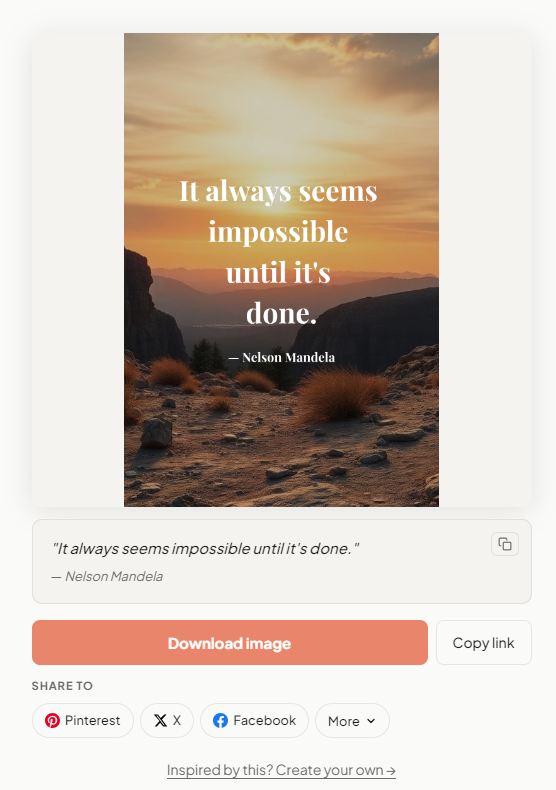
Once everything looks right, you can export your quote image and use it for Instagram, Pinterest, or your content.
Once everything looks right, export your design.
Now you can create a quote image for:
- Instagram posts or stories
- Pinterest pins
- blog content or landing pages
At this point, your quote image is ready to use.
Creating quote images for different platforms
One thing you'll notice quickly: the same quote can look very different depending on where you use it.
For Instagram
If you want to create a quote image for Instagram:
- use square or slightly vertical formats
- keep text bold and readable
- design for small screens
For Pinterest
If you want to create a quote image for Pinterest:
- use vertical layouts
- make the design more eye-catching
- give the text room to breathe
Pinterest rewards strong visuals more than minimal ones.
For blogs or personal branding
Consistency matters more than attention here.
If you're creating quote images regularly:
- use consistent fonts
- keep colors aligned
- build a recognizable style
What actually makes a quote image work
After creating a few, you'll start noticing patterns.
The quote images that perform well are usually:
- easy to read at a glance
- visually simple
- matched to the tone of the text
- consistent in style
Most people try to over-design. The better approach is usually to simplify.
If you want to create a quote image quickly
You can do all of this manually in design tools.
But if your goal is speed — especially if you're creating content regularly — it's easier to use a dedicated tool like SparkPoster.
With SparkPoster, you can:
- enter your quote
- choose size and text position
- generate or select a background
- export your image in seconds
A few things people usually wonder about
Do I need design skills to create a quote image?
Not anymore. Most tools are designed so you can create a quote image just by choosing layouts and adjusting a few settings.
What's the best size for a quote image?
It depends on where you're posting:
- Instagram: square (1080 × 1080)
- Pinterest: vertical (around 1000 × 1500)
Why do some quote images look better than others?
It usually comes down to readability and layout.
Good quote images are easy to read, well spaced, and visually balanced. The background supports the text instead of distracting from it.